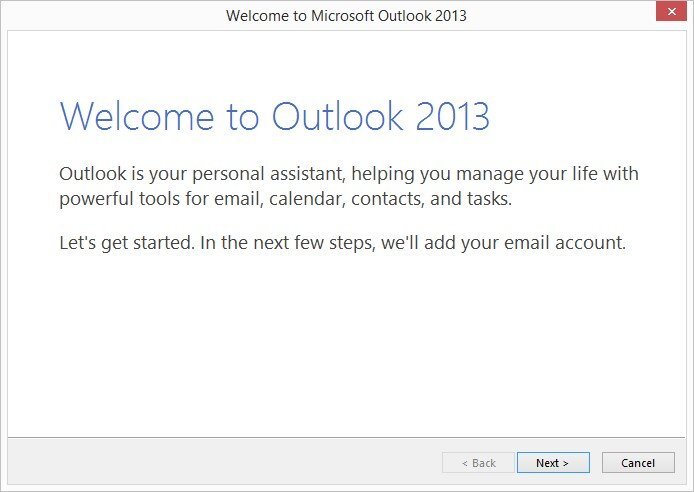
Open a fresh installation of Microsoft Outlook 2013 or a new Profile.
Click on ‘Next’
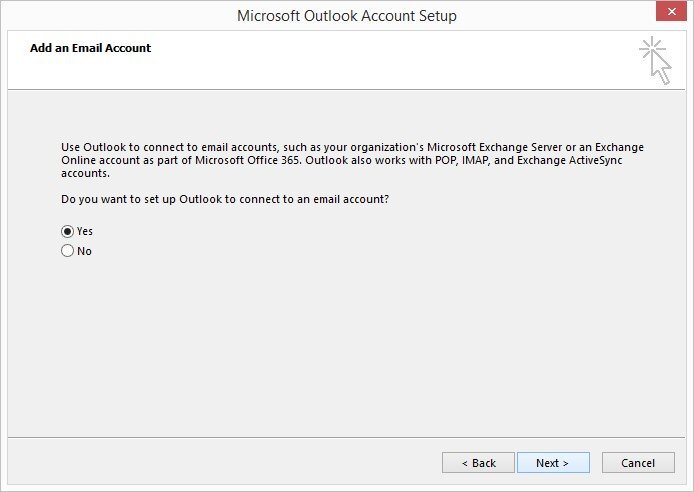
Choose ‘Yes’ and click on ‘Next’
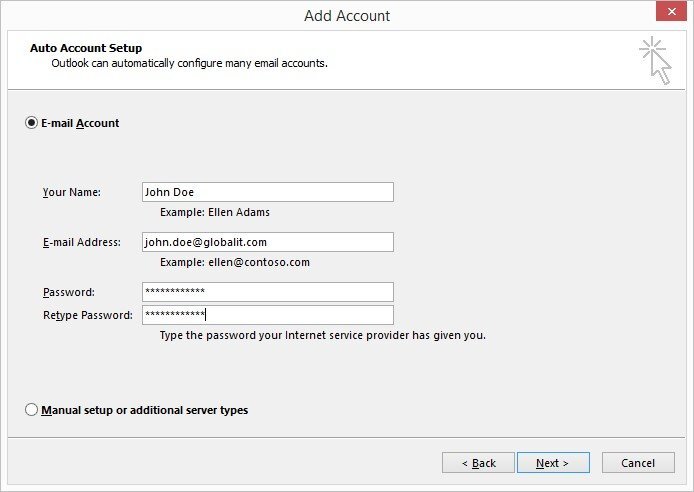
Fill in your name, full email address, password twice, and click on ‘Next’
Accept any security warnings
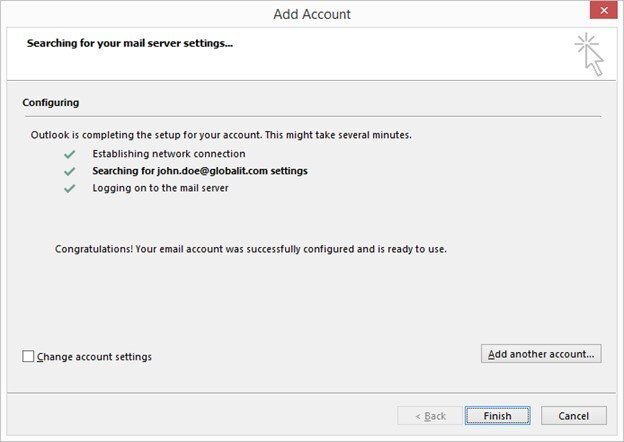
Your Outlook is now configured with Global IT Exchange